Build comparison: up to three builds side by side, with just the differences
Add builds by link and compare attributes, PlayStyles and AP spent under the same boost conditions.

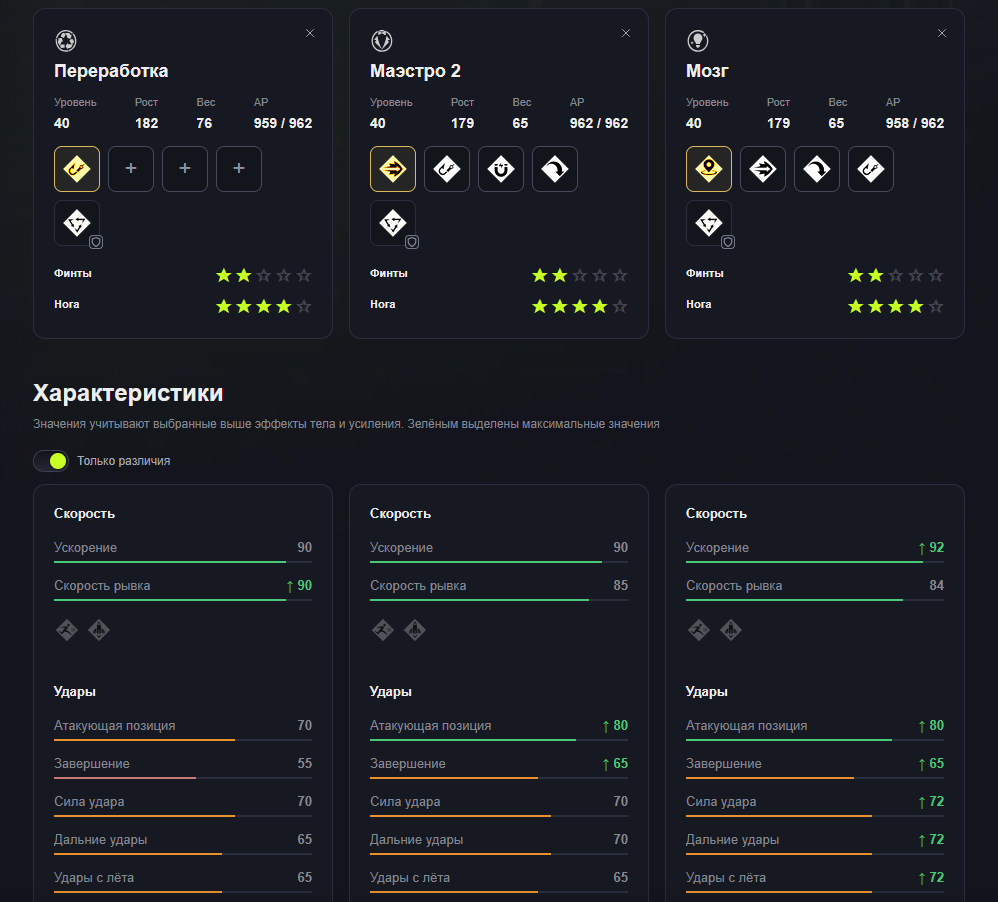
Build comparison puts up to three builds side by side: attributes, PlayStyles, specializations and spent. Use it to test alternatives for a role and discuss concrete numbers with your team.
1. Prepare your builds
Comparison uses saved builds. You can use your own, guest links or available builds from other players.
To test a different AP allocation, save your original build and create a separate copy with your changes. This preserves your working setup. See how saving works.
2. Add up to three builds
Open comparison and fill First build, Second build and optionally Third build. Select an available build or paste its link.
The third build is optional. Start with two when checking a single change: it is easier to see the difference from the other build.
Adding another build to a full comparison queues it until a slot becomes available. Remove a build or clear the comparison to add the waiting one.
3. Use the same conditions
Above the results are controls for body, club and archetype effects. These sources can change final attributes, so decide what you want to compare first.
- To assess AP allocation, inspect ratings without additional sources.
- To test a player for real matches, enable the appropriate body effects and boosts.
- When comparing different archetypes, also consider specializations and .
See the boost setup guide for configuration.
4. Enable Differences only
This switch hides matching attributes. It is particularly useful when two builds differ by just a few AP allocations.
With two builds, parentheses show the difference from the other build. With three, the highest ratings are highlighted in green. If the attributes match after filtering, a message explains that.
A higher number does not make a build better for every role. Compare relevant attributes alongside the required , stars and remaining AP.
5. Share with your team
Link in the action panel shares the selected builds and boost conditions. Recipients do not need to sign in to view available public builds.
PNG saves an image of the current comparison, including selected conditions and the differences filter. It is useful when your team needs a ready-to-share picture.
Example: checking an alternative
- Save your current CM as the original.
- Create a copy and move AP from a less important attribute into passing.
- Add both links to comparison.
- Set the same bonus conditions.
- Enable Differences only and check what you gained and gave up.
- Send the link or PNG to your team.
Comparison does not require an account. An account is useful for keeping your own options in My builds.
Comments 0
To post a comment, sign in.