The archetype finder is open to everyone: set your targets and find a build
Attributes, PlayStyles, body and specializations in one finder, with explanations for shortfalls and a direct handoff to the builder.

The archetype finder helps you choose a foundation for a specific player. Set your target attributes and PlayStyles, and ClubsLab checks which archetypes have enough , the required slots and suitable specialization requirements.
1. Choose a role and level
Open the archetype finder, choose Outfield or Goalkeeper and enter your player's level. Level determines AP budget and available archetype features.
Use the level you will play at. A build that works at level 40 may not fit a lower level's budget or personal slots.
2. Set important attributes
Enter minimum ratings your build needs in Attributes. Empty fields add no requirements. Start with a few attributes important to your role rather than filling every field.
For a fast player, start with Acceleration and Sprint Speed, then add Ball Control and relevant passing attributes. If there are no exact matches, lower less important targets one at a time to identify the obstacle.
Change ratings by typing, using minus and plus, or dragging the slider handle. On a phone, tapping the track itself does not change the rating.
Mobile attribute groups collapse. The counter on the right shows how many attributes are set and remains visible when expanded. Pace starts open.
3. Set Skill Moves, Weak Foot and body
Specify minimum Skill Moves and Weak Foot ratings if needed. Their upgrades also cost AP and are paid before attribute allocation.
For a specific height and weight, open Body and enable Include height and weight. This unlocks the body controls. The dimmed section is unavailable while the switch is off.
With body enabled, archetypes outside the chosen height or weight range are excluded. If size is not essential, leave it off to use each archetype's neutral body.
4. Choose PlayStyles
In , select up to four styles. Their required attribute targets rise automatically. These are raw requirements: club and archetype bonuses cannot replace upgrades needed to unlock a personal style.
Removing a style reverts automatic increases if no other selected style needs them and you have not edited them manually.
Four requested styles do not necessarily need four regular personal slots. The finder includes signature styles and specialization: a requested style may be gold. If this needs a specialization change, the result flags it and includes AP for its attribute requirements. Switching itself adds no separate charge.
An enabled club style is accounted for separately from personal slots. You do not need to select it again as a personal style.
5. Check boosts
Select a club preset and an archetype bonus preset in Boosts. Use actual settings for a player you will use now, or a separate planned preset for future progression.
Both sources are enabled on your first visit. If you have not set them up, fill them in or turn off the relevant source so you compare under the right conditions.
See the boost setup guide.
6. Read the results
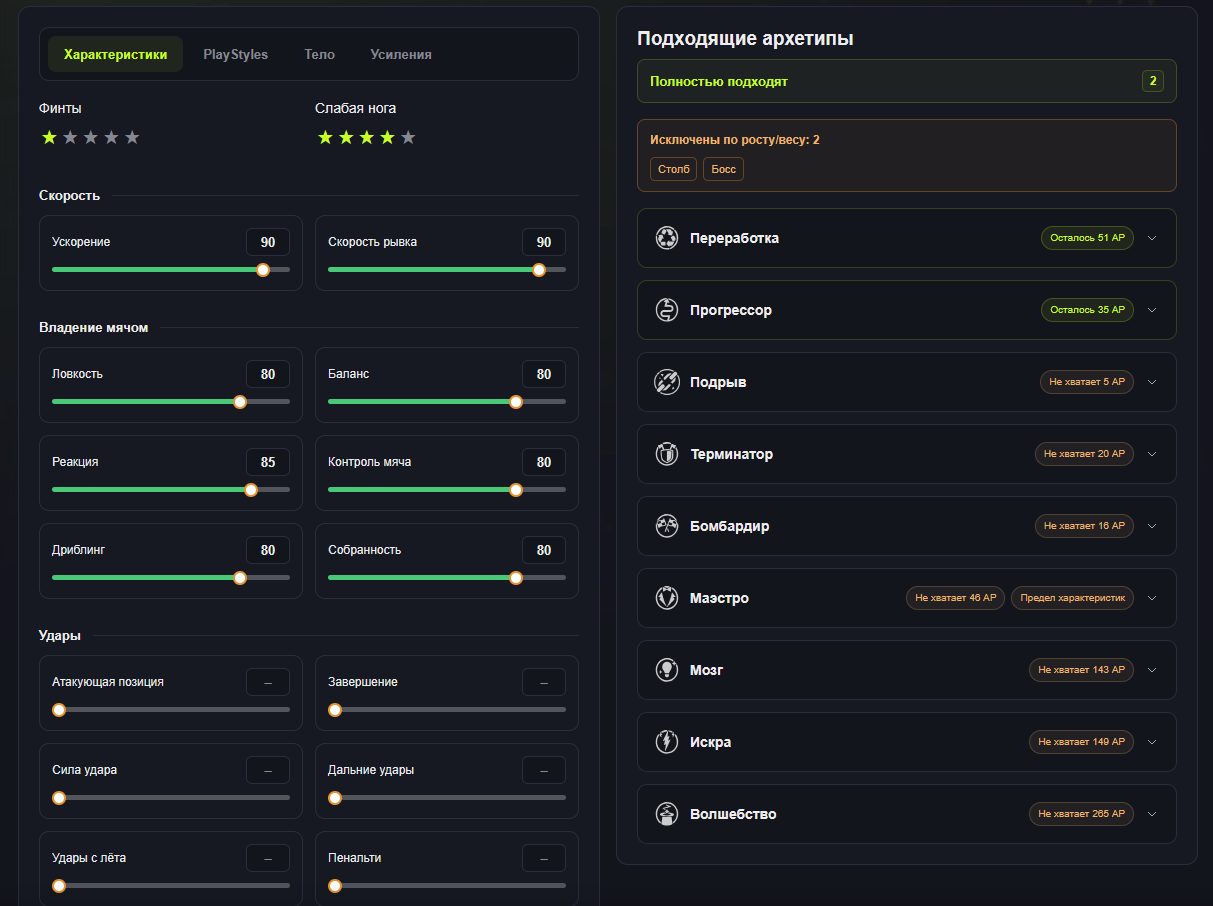
Exact matches meet every target. Other cards show the closest options and explain what prevents a complete match.
- Negative AP means the requirements exceed the budget.
- No PlayStyle slot means the selected styles do not fit the available slots.
- Attribute cap means a target exceeds the rating available to that option.
- A specialization label explains which gold style requires the change.
Expand a card to inspect allocation and limits. Only one archetype is open at a time. On mobile, the button above the bottom toolbar smoothly takes you to results and hides once they are in view.
7. Open a result in the builder
Choose Open in builder on a result. The editor receives its calculated attributes, body, PlayStyles, specialization and selected boost sources.
Review the result, allocate remaining AP and save your build. If several options look good, save them and compare them side by side.
What stays between visits
Targets and the selected tab stay in this browser, including for guests. Signing in preserves targets, but account boost presets may change results.
Reset clears targets, stars, body and selected styles while keeping boost switches and presets. This is useful for a new search under the same club conditions.
Comments 0
To post a comment, sign in.
Comment deleted by its author.