Club boosts in ClubsLab – build, optimize and compare presets
Build a preset within budget, find boosts for your squad, compare AP savings and share your club bonuses with teammates.
We’ve updated Club Boosts in ClubsLab. Build a preset within your budget or let ClubsLab recommend which facilities to buy and how many stars to choose based on your squad’s archetypes, priority attributes and preferred PlayStyles. Compare the recommendation with your current setup by cost and AP savings, then share the boosts with your teammates so they can apply them to their own builds.
Club Boosts has four pages:
- my sets – save the club bonuses you use in your builds and share them with a link;
- club builder – choose facility levels, track spending and save configurations;
- club boost optimizer – get purchase recommendations based on your squad and priorities, then compare the suggested setup with your own;
- compare presets – compare two configurations saved in the Club Builder.
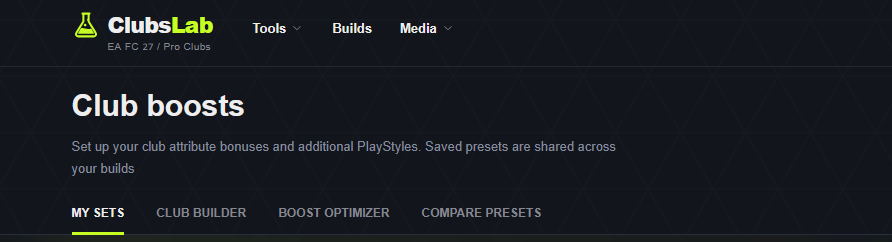
My sets
Save the boosts your club gives players in the game. Enter the attribute bonuses and extra PlayStyles so you can use them when making builds in ClubsLab.
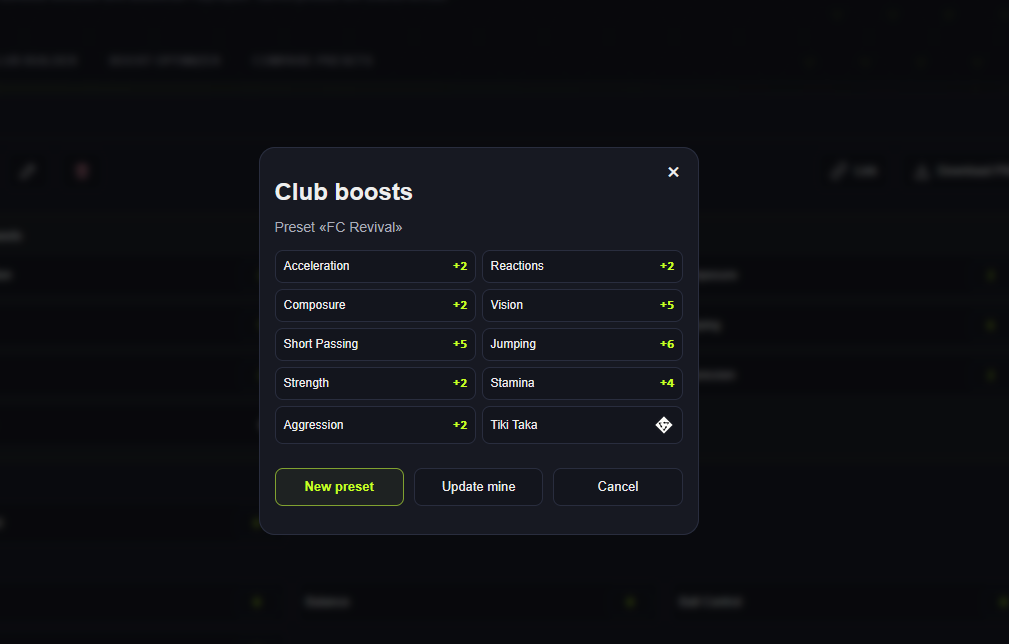
One teammate, such as the club captain, can create a shared preset and keep it up to date. When the in-game boosts change, they update the preset, click Link and post the new link in the team chat. Teammates can open it, review the bonuses and click Update mine. ClubsLab applies all the attribute boosts and PlayStyles in one go.
You can also save a separate copy from the same window. Guests have one preset and can update it from a link too.
To apply the bonuses, turn on Club boosts in the builder or on the build page.
Club Builder
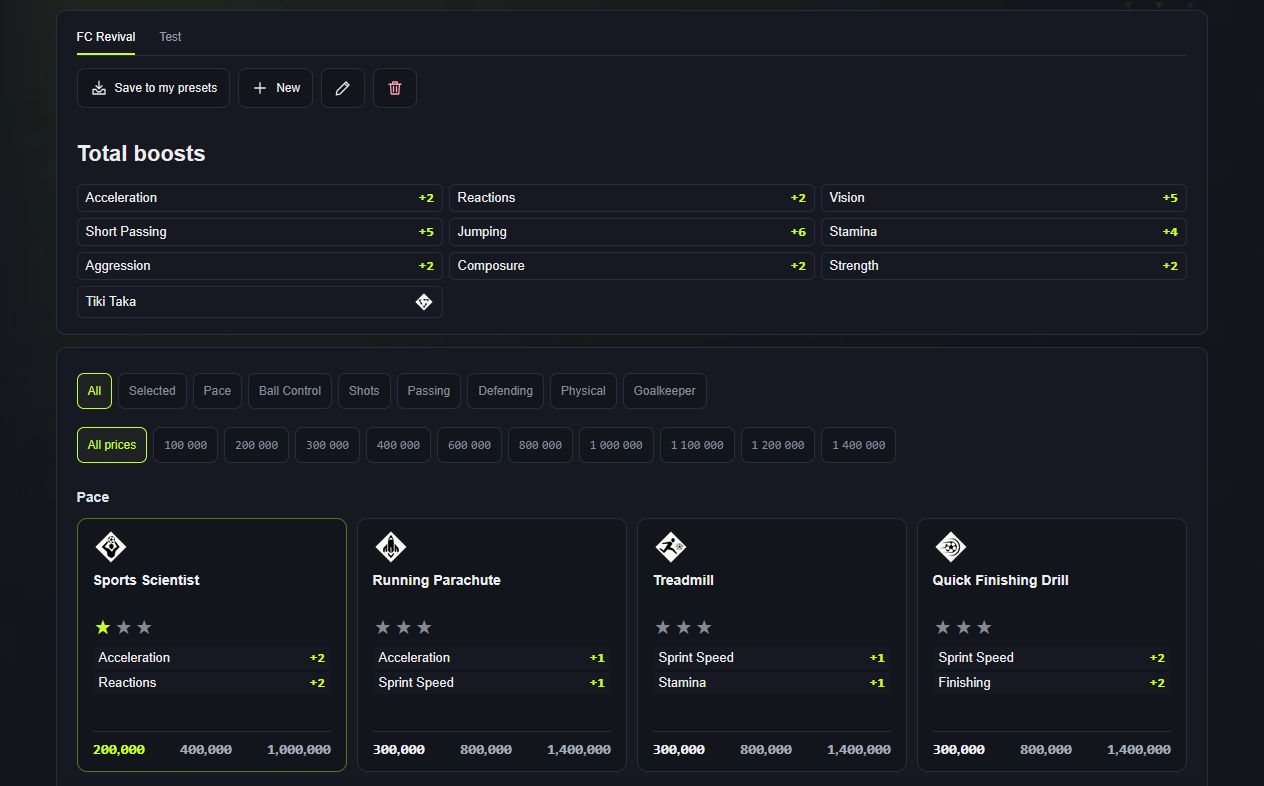
We’ve added all the club boost purchases from the game. Try different combinations on the site and build a setup that suits your squad. Set a budget and choose the number of stars for each facility. You’ll see how many coins are left, which attributes improve and which PlayStyles unlock.
Give each configuration a name. You can save what your club uses now and keep another setup for future purchases. Changes to the selected configuration are saved automatically.
When you’re happy with a setup, click Save to my presets to transfer the combined boosts and share them with your team.
Club Boost Optimizer
Choose your squad’s archetypes and set the club budget. If certain attributes or PlayStyles matter most to the team, select them. ClubsLab will recommend which facilities to buy and how many stars to choose.
How the optimizer works
Enter the number of players using each archetype. If two teammates use the same archetype, set its count to 2 so their savings are both included.
The optimizer first looks for a setup that grants the most requested PlayStyles. If two setups cover the same number, it favors the one that saves more AP on your priority attributes. Total squad savings break any remaining tie.
How AP savings are calculated
Suppose your club gives you +2 Strength. To reach 85 Strength, you’d normally buy upgrades up to 85. With the club boost, you only need to reach 83. The AP saved is the cost of the two upgrades 83 → 84 → 85 for that archetype.
Those upgrades can cost different amounts for different archetypes. The optimizer adds up the savings for every selected player and every boosted attribute. It uses 85 as a common target. If your actual build aims for a different value, its savings may differ.
The results show what to buy, which star levels to choose and how much money you’ll have left.
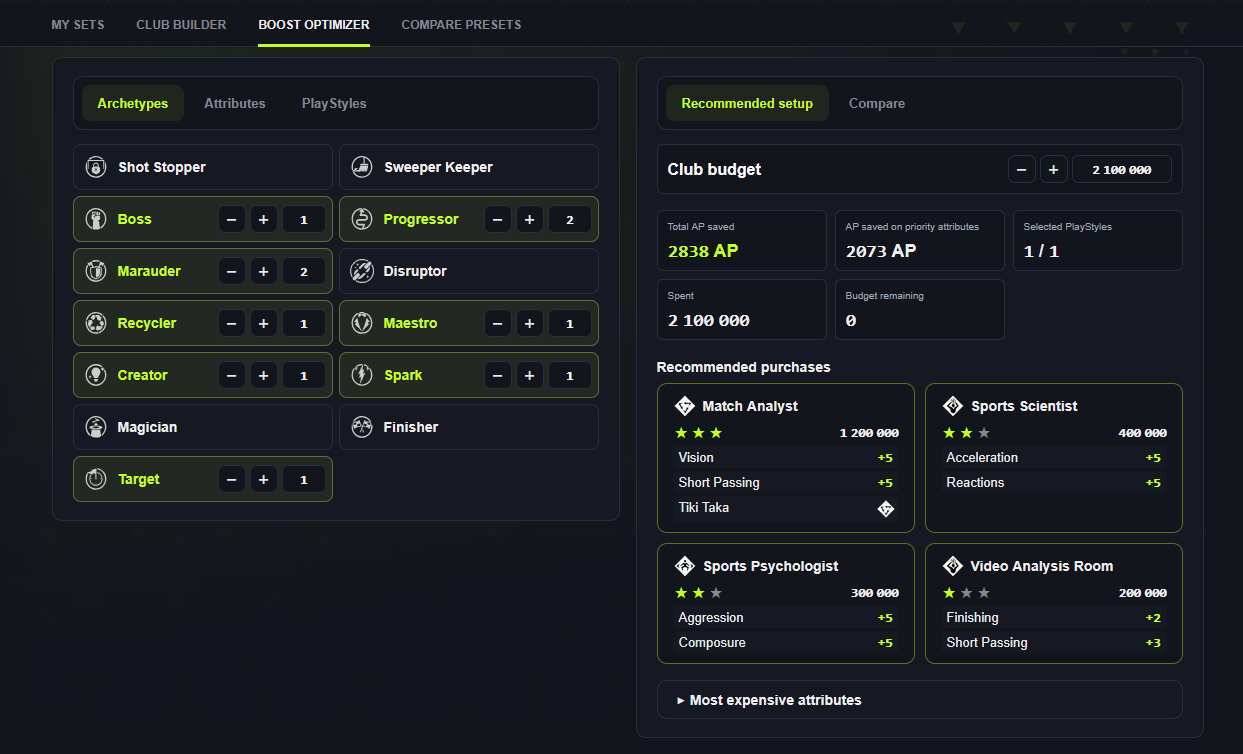
To compare the recommendation with an existing setup, open Compare on the optimizer page and select a configuration saved in the Club Builder.
Compare presets
Save two configurations in the Club Builder. For example, save your current boosts and a setup you’re considering. Open Compare presets and select both. You’ll see the costs, attribute bonuses and PlayStyles side by side.
To see how much AP each setup saves, enter your squad’s archetypes and player counts. Both configurations are evaluated for the same players and the same target of 85.
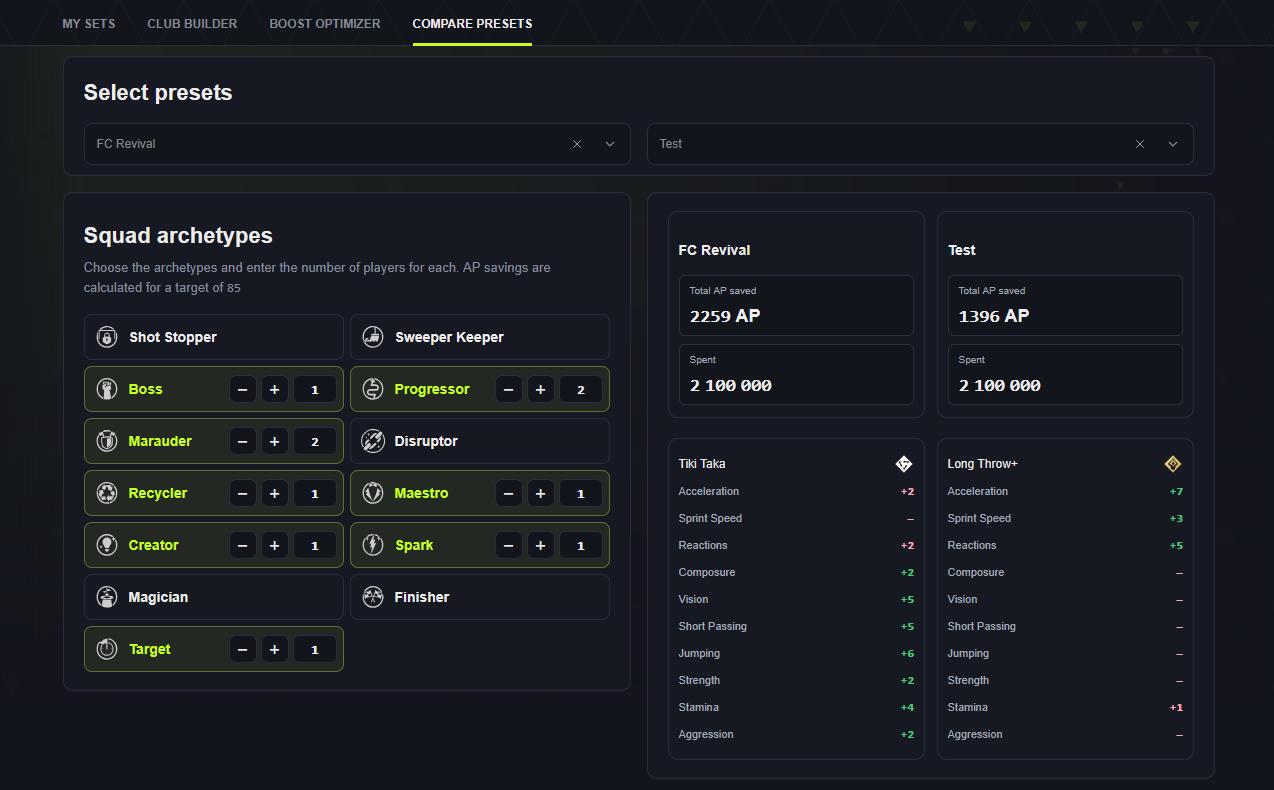
If you’re deciding whether to change your club purchases, save your current setup first. Run the optimizer for your squad and compare the results. Once you’ve picked a setup, transfer the boosts to My sets and share the link with your teammates.
Comments 0
To post a comment, sign in.